Welcome to TriggerFlo
TriggerFlo is a professional time tracking and project management app for macOS, Windows, and Linux. This help center covers everything you need to get productive.
Everything you need to get productive with TriggerFlo.
TriggerFlo is a professional time tracking and project management app for macOS, Windows, and Linux. This help center covers everything you need to get productive.
Sign up for TriggerFlo with your email address. No credit card required — the Free plan gives you up to 3 projects with full time tracking.
You can upgrade to Pro anytime for unlimited projects, team features, invoices, and more.
Click the + button on the main dashboard to create a new project. Give it a name, pick a color or background image, and optionally add a description and tags.
Open a project to see its Kanban board. Click the + button at the top of any column to create a task.
Click the play button on any task card to start tracking time. A floating timer window will appear showing elapsed time.
Customize the timer layout, buttons, and position from Settings > Timer.
The left sidebar provides access to all major areas of TriggerFlo.
Collapse the sidebar by clicking the chevron for more screen space. Use the global search to find any task or project instantly.
Each project opens as a Kanban board with columns. Default columns are Backlog, This Week, Today, and Done.
Add custom columns beyond the defaults to match your workflow.
Click any task to open its full detail panel with all available fields and options.
Set tasks to repeat automatically on a schedule.
Choose whether completed instances create a new single task or accumulate. Recurrence respects your timezone settings and supports start/end dates.
Add reminders to tasks so you never miss a deadline.
Reminders appear as in-app notifications.
Sort tasks within each column independently. Preferences are saved per column.
Use the search icon in the board header to filter tasks by keyword.
Select multiple tasks to perform bulk actions.
Personalize each project's appearance on the dashboard.
When you start a task, a floating timer window appears on screen. It stays on top of other windows so you can always see your progress.
The timer shows elapsed time (or remaining time in count-down mode) with a progress border indicator that fills or depletes as time passes.
Choose the timer layout that fits your workflow from Settings > Timer. All four stay above your other windows; they differ in how much of the screen they take.
You can also toggle rounded/square corners and enable position memory so the timer opens where you last left it.
Linux note: the Island pill needs the window manager to honour always-on-top and explicit window placement. That works under X11 and XWayland, but not in a native Wayland session, where the compositor owns window stacking and an app cannot raise or position itself. Launch with GDK_BACKEND=x11 to use Island inside the same Wayland session.
Customize which buttons appear on the timer from Settings > Timer. You can reorder or disable any button.
Each task can use either timer mode. Set the mode in the task detail panel.
Tracks total time spent with no limit. The progress border fills as time increases.
Starts from the estimated time and counts toward zero. The progress border depletes as time runs out. A chime plays when time is up.
Take structured breaks during work sessions. Press the break button on the timer to start.
Default duration is 5 minutes. Configure to 5, 10, 15, 20, or 30 minutes in Settings > Timer.
Stay aware of time with periodic chime notifications. Configure in Settings > Timer.
Or upload your own audio file. Set the interval (default 10 minutes) and volume.
Every timer run is automatically saved as a session with start time, end time, duration, and associated task.
The Reports page shows your time tracking analytics at a glance.
Filter by date range, project, or column. Export all data to CSV.
Export your sessions and task data for use in spreadsheets, accounting software, or other tools.
The export includes task names, durations, timestamps, and project info.
Generate professional invoices from your tracked time.
Visualize your tasks on a calendar in multiple view modes.
Tasks with due dates appear on their scheduled day. Double-tap any day to quickly create a new task.
Connect your Google Calendar to see external events alongside your tasks.
Google Calendar events can be imported as tasks with due dates automatically set. Map events to a specific project and column.
Schedule tasks within a date range and working hours window instead of a single due date.
Assign a task to "this week, between 9am–5pm." TriggerFlo will place it on the calendar accordingly and respect your timezone settings.
Invite team members to your project by email. Each member is assigned a role that controls their permissions.
Changes made by team members appear instantly. TriggerFlo uses Server-Sent Events (SSE) for live sync.
No need to refresh — everything updates automatically.
Assign tasks to specific team members from the task detail panel. Assignees can see their assigned tasks and track time independently.
Create teams to group members across multiple projects. Teams is a Pro feature.
Workspaces let you group related projects into a single view.
Use the workspace dropdown in the sidebar to switch between "All My Projects" and your custom workspaces. Each workspace remembers its own grid dimensions and sort order.
Choose what you see when you open TriggerFlo.
Go to Settings > General and set the front page to:
Switch between Light, Dark, or System theme modes. TriggerFlo follows your OS preference when set to System.
Configure every aspect of your timer experience from Settings > Timer.
Customize keyboard shortcuts for common actions. TriggerFlo supports global shortcuts (app-wide) and page-specific shortcuts.
Choose how time inputs appear throughout the app.
TriggerFlo auto-detects your timezone, but you can override it manually in Settings.
Flo is the assistant built into TriggerFlo. Ask it what is overdue, what you spent Tuesday on, or to break a vague task into subtasks — it can read your projects, columns, views, tasks, subtasks, and comments to answer.
Flo can propose new tasks, but it cannot create, change, or delete anything without your explicit confirmation. Every write shows you exactly what it wants to do first. Nothing lands on your board because a model was confident.
You are asked to consent before any of your content goes to an AI provider for the first time. You can withdraw that consent whenever you like in Settings > General, which stops anything further being sent and disables these features until you turn them back on.
Where the app offers a model picker, the model you pick is tried first. Requests run on Cloudflare Workers AI, falling back to Anthropic when Workers AI is unavailable or returns an unusable result. The privacy policy lists the exact models in use today and is updated when they change.
If Flo produces something inappropriate, report it from the assistant itself. Reports reach us at support@triggerflo.app and we act on them.
Talk at the app and it turns what you said into tasks. Useful when you have five things in your head and no interest in filling out five forms.
If you say "next Friday", that phrase is kept as a hint on the task rather than resolved to a date. The parser is explicitly told not to guess — a wrong due date that looks precise is worse than a vague one you can fix.
Voice capture needs platform speech recognition, so the microphone is hidden where it cannot run. It is available on macOS, Windows, iOS, and Android. Linux has no speech recognition support, and on the web it works in Chrome and Edge only.
TriggerFlo runs a Model Context Protocol server, so an AI assistant that speaks MCP can read and update your board directly — no copy-pasting between windows. It works with Raycast, Claude Code, and any other client that speaks MCP over HTTP.
Whichever client you use, the three things it needs are the same:
https://triggerflo.app/mcpX-API-Key set to a key you create in the app under Settings > MCP & API. Copy it when you create it; you only see it once.TriggerFlo. This becomes the mention handle you type in a Raycast AI chat, so a short name is worth it.HTTP.https://triggerflo.app/mcp.X-API-Key, value your key.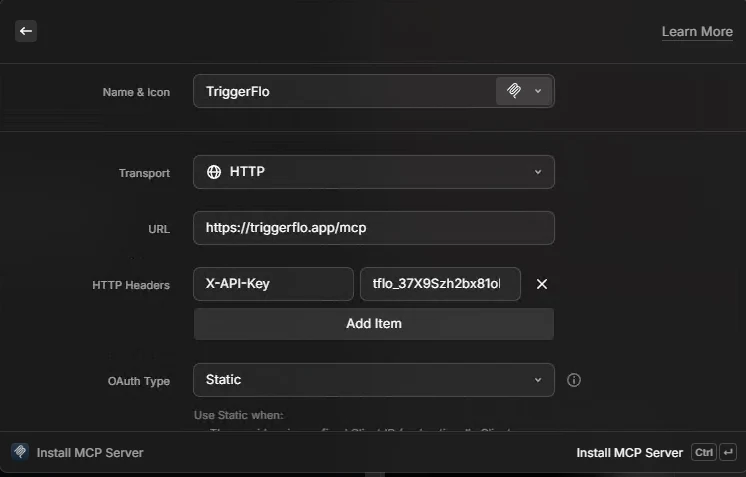
Scroll down and you will find an OAuth section. Leave it alone — TriggerFlo authenticates with the header you just added, so Client Secret and Scopes stay empty. The Description is optional, but it helps Raycast's model decide when to reach for the server, so it is worth filling in.
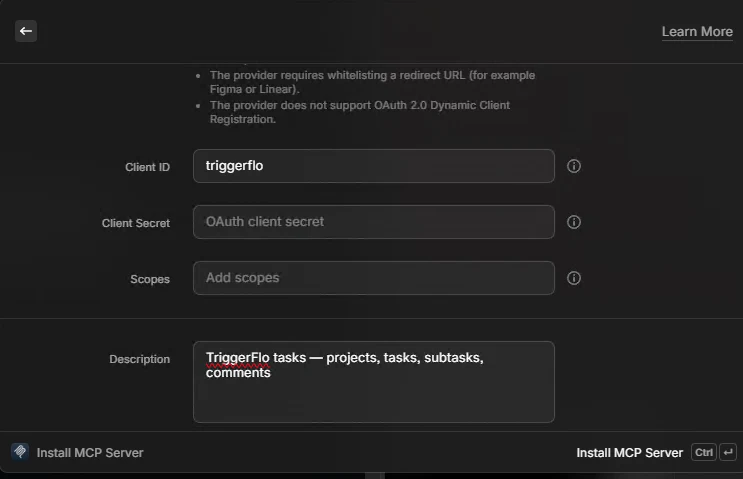
Install it. The server shows a green dot in Manage MCP Servers once it connects.
In any Raycast AI chat, type @TriggerFlo to bring it in, then ask normally — "list my projects", "what is overdue on the client site rebuild", "add a task to Today".
One command:
claude mcp add --transport http triggerflo https://triggerflo.app/mcp \
--header "X-API-Key: tflo_your_key_here"{
"mcpServers": {
"triggerflo": {
"type": "http",
"url": "https://triggerflo.app/mcp",
"headers": { "X-API-Key": "tflo_your_key_here" }
}
}
}get_projects, get_project, get_project_columns, get_viewsget_tasks, get_task, create_task, update_taskget_subtasks, create_subtask, update_subtaskget_comments, add_commentdownload_attachment, for files up to 5 MBConnect your Google Calendar from Settings > Integrations.
Link a Spotify track or playlist to any task. When the timer starts, TriggerFlo opens the Spotify URI so your music plays automatically.
Import tasks from text files or paste text directly using the smart task parser.
Assign imported tasks to any column for batch creation.